
Getting Started
Sign in, choose a farm, and orient yourself in the dashboard.
Getting Started
This guide gets you from first login to a working view of your farm.
1. Sign in
- Open the app and you'll be redirected to the login screen.
- Enter the email and password tied to your organization.
- After logging in, you land on the Dashboard home.
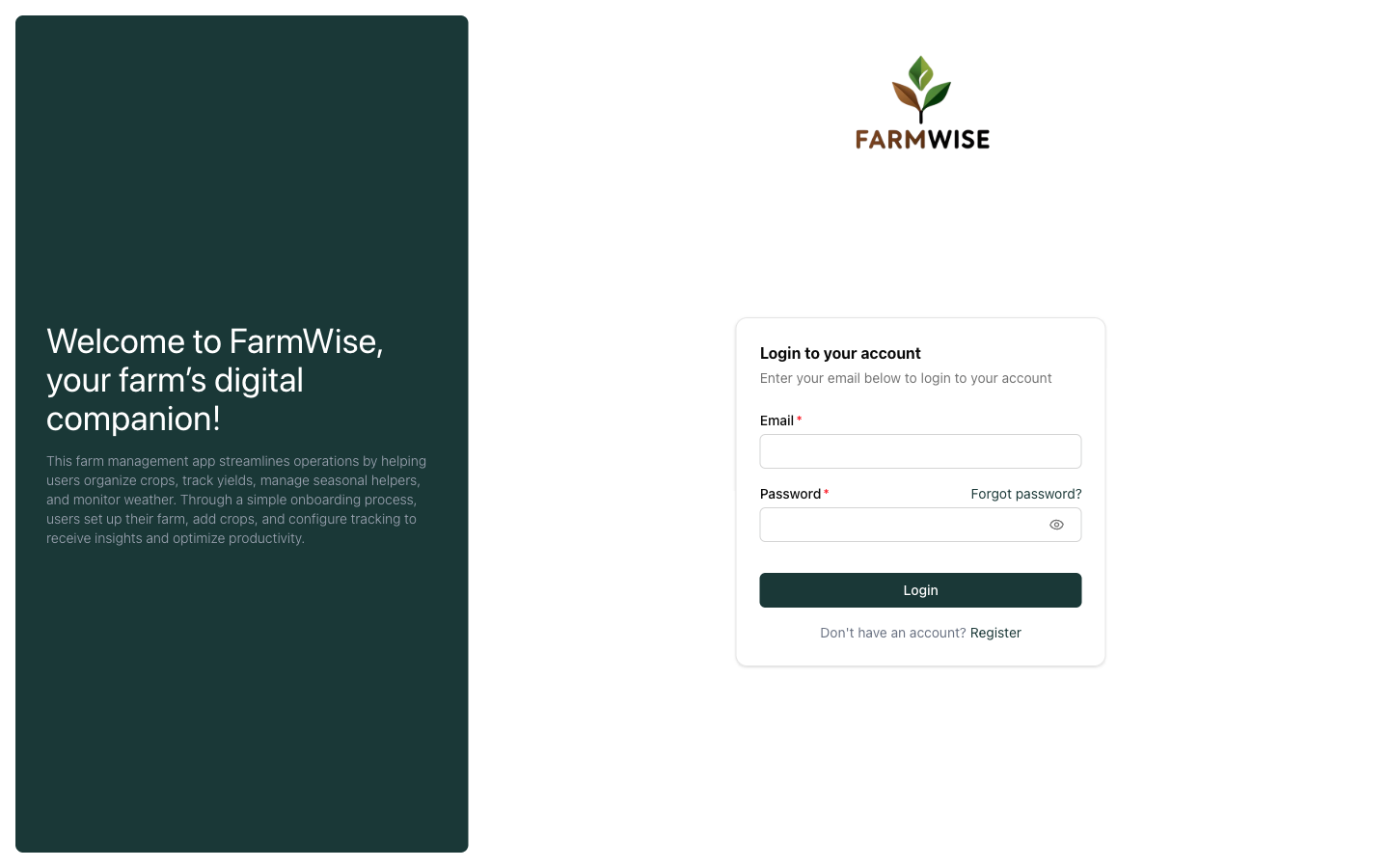
If you don't yet have an account, ask your organization admin to invite you. Each user belongs to one organization, and that organization owns one or more farms.
2. Pick a farm
If your organization manages more than one farm, choose the active farm from the farm switcher in the top header. The dashboard, seasons, animals, and inventory all scope to the selected farm.
3. Tour the sidebar
The left sidebar is your main navigation:
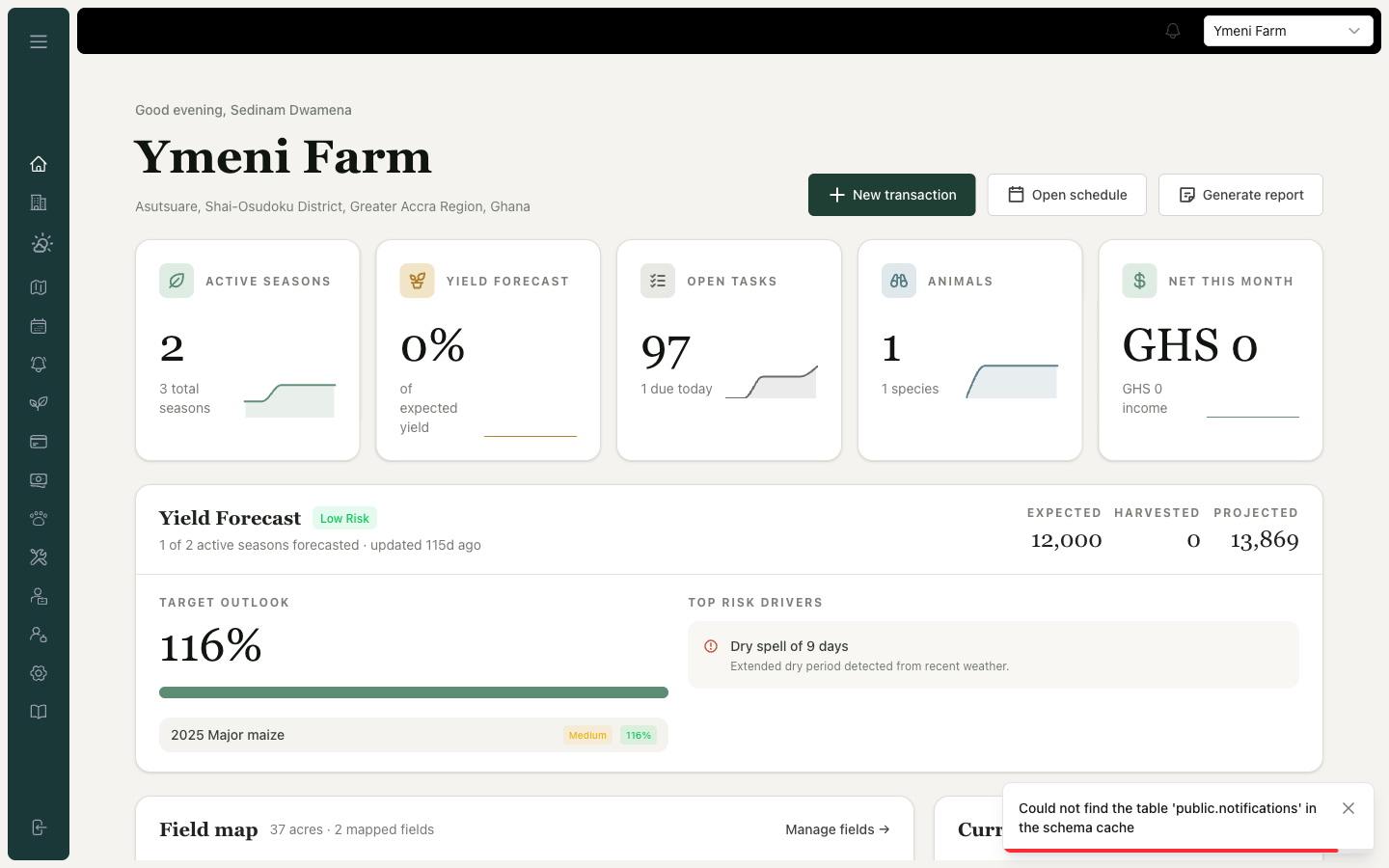
Related pages sit together under one sidebar link, with tabs along the top of the page to move between them. You only see the links and tabs your role allows.
| Sidebar | Tabs inside | What it's for |
|---|---|---|
| Home | Dashboard · Today · Weekly summary · Alerts | The overview, today's tasks, the week in one page, and alerts. |
| Seasons | Crop and livestock cycles: create, monitor, end. | |
| Schedule | Calendar of tasks and who's working when. | |
| Fields | Fields · Rainfall · Soil tests | Field maps, the rain gauge, and soil results. |
| Money | Transactions · Sales · Money owed · Loans · Market prices · Contacts | Everything about money in and out. |
| People | Workers · Attendance | Workers, the daily roll and wages. |
| Stock | Inventory · Animals · Crop templates | Supplies, equipment, animals, and what you grow or raise. |
| Farmers | The outgrower farmer registry. | |
| Organization | Farms, members, roles, reports and the activity log. |
Settings and Help are at the bottom, next to Logout.
4. Next steps
Most workflows start with an entity (the thing you grow or raise) and a season (the cycle you grow it in). Read these two guides next: