
Weather Integration
How weather data is sourced, displayed, and used across the platform.
Weather Integration
The platform pulls weather data for each farm and surfaces it where it's actionable — the dashboard, the schedule, and event logging. This guide explains what data, how often, and how to make sure it's working.
Source
Weather data comes from a third-party weather API. The configuration is on the platform side; you don't sign up separately. Coverage is global; resolution and forecast accuracy vary by region.
Required setup
For weather to work for a farm, the farm needs a location:
- Go to Settings → Farms → farm.
- Set the Address or Coordinates.
- Save.
Without coordinates, the weather card shows a "location not set" message.
What you see
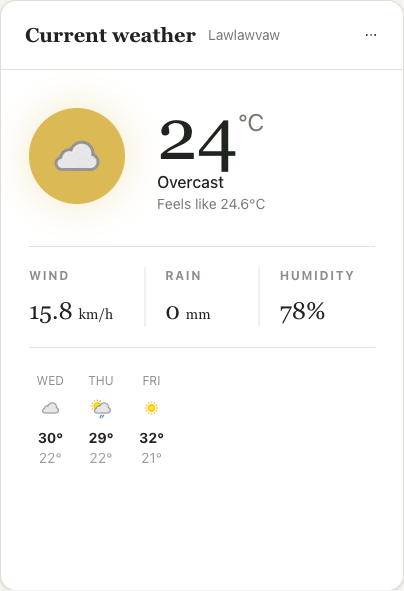
Current conditions
- Temperature.
- Feels-like temperature.
- Humidity.
- Wind speed and direction.
- Precipitation in the last hour.
- Cloud cover.
- Sunrise / sunset.
Forecast
- Hourly for the next 24 hours.
- Daily for the next 7 days.
- Each day shows high/low temperature, precipitation chance, wind summary.
Historical
- Past 14 days available on the dashboard.
- Past 12 months available via Reports for trend analysis (where the API supports it).
Where weather appears
| Location | What it shows |
|---|---|
| Dashboard → Weather card | Current conditions + 5-day forecast for the active farm. |
| Dashboard → Weather Snapshot card | Compact tile (temp + icon). |
| Schedule | Optional overlay showing forecast for task dates. |
| Field Map | Optional rain or temperature heatmap overlay. |
| Event form | When you log an event, the current conditions are auto-attached so you can see "was it raining when this happened." |
Refresh cadence
- Current conditions refresh every 15 minutes.
- Forecast refreshes every 3 hours.
- Historical data is fetched lazily when requested.
Manual refresh: click the refresh icon on the weather card.
Auto-attached weather context
When you log an event during a season, the current weather is captured into the event record:
- Temperature.
- Humidity.
- Precipitation.
- Wind.
This is invaluable for later analysis: "every aphid outbreak happens in the 3 days after a humid spell" becomes a query you can run.
Use cases
Spray timing
The weather widget shows wind speed prominently. Avoid spraying when wind > 10 km/h to prevent drift.
Frost alerts
Configure the farm to alert when forecast low drops below your threshold. Useful for orchards, tender vegetables, citrus.
Rain planning
Schedule harvest, planting, or spraying around the forecast. The 7-day view is enough lead time for most decisions.
Heat stress (livestock)
Configure heat alerts for livestock farms. The platform notifies you when forecast temp + humidity index crosses a danger threshold.
Alerts
Configure under Settings → Alerts → Weather:
- Frost (low temp threshold).
- Heat (high temp threshold).
- Heavy rain (forecast precipitation threshold).
- High wind (wind speed threshold).
Crop risk alerts
These run automatically every night, and when you refresh alerts:
- Dry spell. Five or more days with less than 1 mm of rain in the forecast, while an annual crop season is in its first 100 days (germination to flowering). Seven dry days, or highs of 35C or more, make it critical. The alert suggests holding off sowing and fertilizer, mulching and weeding to save moisture, and watering young plants if you can. A drought event is added to the season and cleared when the forecast changes.
- Fall armyworm. For maize seasons 1 to 11 weeks after the season start. You get a high alert when someone in your organization reports armyworm (an event mentioning "armyworm", "FAW" or "Spodoptera") on another field in the last 3 weeks, and a medium alert when a dry spell is forecast, since armyworm builds up fastest in dry weather. Each alert explains how to scout.
Report armyworm as a pest event on the season where you saw it, so your other fields are warned.
Alerts appear on the dashboard Alerts card and trigger notifications per your preferences.
Rain gauge
Forecasts are for an area; a rain gauge tells you what actually fell on your farm. Open Fields in the sidebar, then the Rainfall tab.
- Put a gauge in an open spot, away from trees and roofs.
- Every morning at the same time, read it, click Record rain, enter the millimetres and empty the gauge. Enter 0 on dry days.
- If you have more than one gauge, give each a name (for example North field). FarmWise averages them for each day.
The page shows rain in the last 7 and 30 days, this month and the number of rainy days, the same month last year once you have a year of readings, and a chart of the last 60 days. If your gauge shows 5 or more dry days in a row, you'll see a warning.
Measured dry days also feed the dry spell alert: if the gauge has been dry for 3 days and the forecast shows 3 more, FarmWise treats it as a 6-day dry spell instead of waiting for 5 forecast dry days.
Readings can be recorded offline.
Multi-farm
Each farm has its own weather pulled for its coordinates. Switching farms in the header refreshes the weather widget to that farm's location.
Troubleshooting
Weather isn't showing
- Check the farm has a valid location (Settings → Farms).
- Check internet — the widget needs to fetch from the API.
- If the third-party API is down, you'll see a fallback message. Data resumes on the next refresh.
Weather looks wrong
- Confirm the coordinates aren't slightly off. Even 5 km can change a microclimate.
- Hourly forecasts diverge from reality more than current conditions; that's the nature of forecasting.
Stale "current" data
- Click the refresh icon.
- If it doesn't update, the platform's quota with the weather API may have been hit. Contact your admin.
Quota and cost
The platform pays for weather API usage. There's typically a fair-use quota per organization. Heavy use of historical data may be rate-limited; current conditions are always available.
See also
- Field Map — weather overlays on the map.
- Dashboard Cheat Sheet.
- Notifications — weather alert delivery.