
How to Manage Inventory
Track equipment, supplies, and materials — purchases, usage, and maintenance.
How to Manage Inventory
Inventory covers everything you stock or own: seed, fertilizer, fuel, tools, machinery, and equipment. Each item has a balance, a purchase history, and a usage log.
Open the page
Click Stock in the sidebar (it opens on Inventory).
Add an item
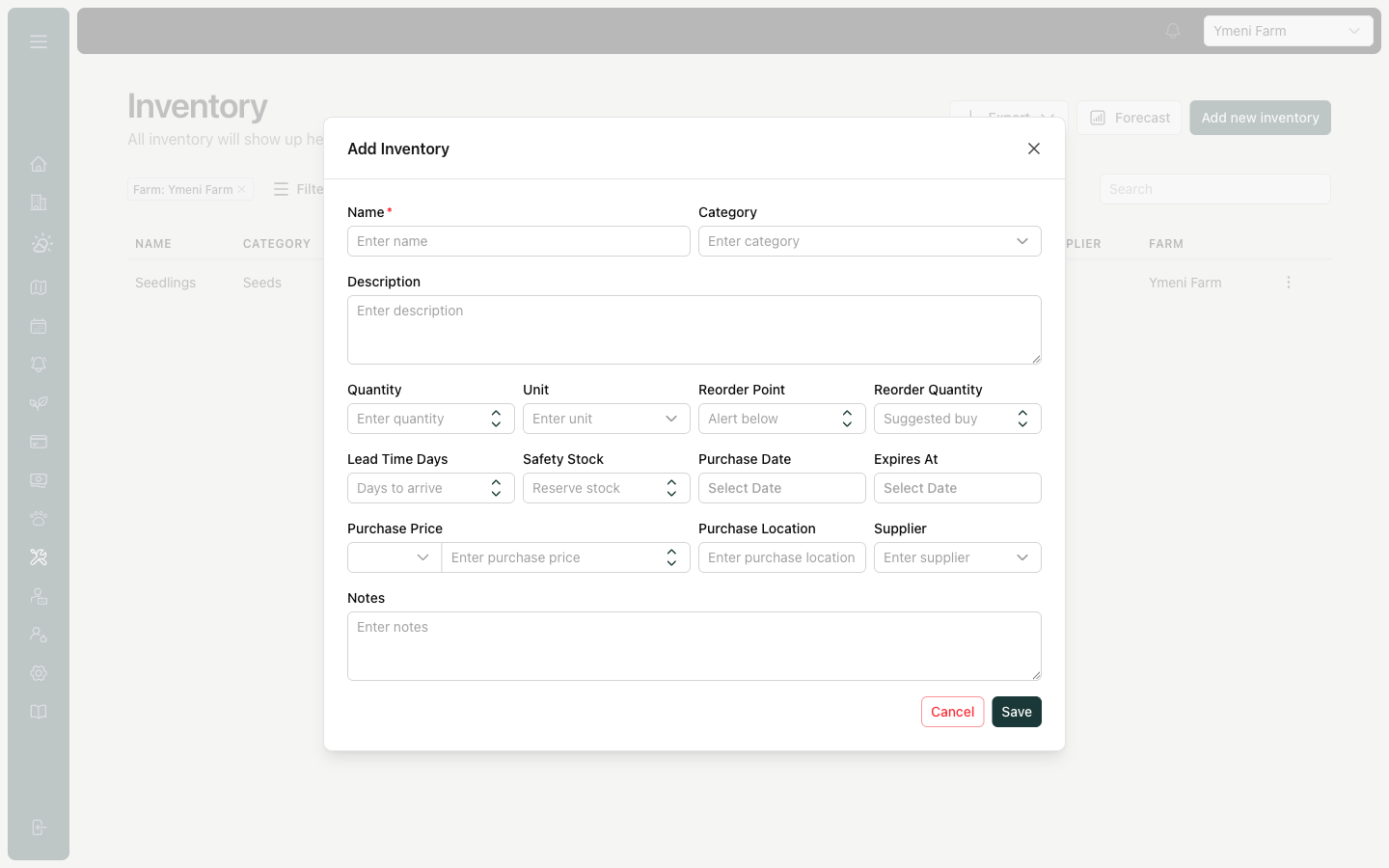
- Click Add Inventory.
- Fill in:
- Name — required.
- Category — seed, fertilizer, fuel, equipment, tool, supply, etc.
- Unit — kg, L, pieces, hours.
- Initial quantity — starting balance.
- Reorder level — quantity at which to alert.
- Storage location — optional.
- Save.
Record a purchase
When you buy more stock:
- Open the item's detail view.
- Click Add Purchase.
- Enter:
- Quantity added.
- Unit cost and total.
- Supplier — pick from your suppliers list.
- Purchase date.
- Save.
The balance increases and an expense transaction is created automatically.
Record usage
When stock is consumed:
- Open the item.
- Click Add Usage.
- Enter:
- Quantity used.
- Date.
- Season — links the cost to that cycle.
- Task — optional; links to a specific job.
- Worker — who used it.
- Save.
The balance decreases. Costs roll into the season's expense breakdown.
Maintenance (equipment)
For equipment items, the inventory view includes:
- Maintenance Schedule — recurring services (oil change every 100 hours, annual inspection, etc.).
- Maintenance Log — past services with cost and notes.
- Click Schedule Maintenance to add a recurring entry.
- Click Log Maintenance when a service is performed.
Upcoming maintenance appears in the dashboard alerts and schedule.
Low-stock alerts
Items at or below their reorder level appear in:
- The dashboard Inventory card.
- The dashboard Alerts card.
Filter inventory
Filter by category, location, low-stock-only, or search by name.