
How to Use the Schedule
Calendar view of tasks, events, and reminders across your farm.
How to Use the Schedule
The Schedule page is a calendar view of everything happening on the farm — tasks, events, health reminders, and key season milestones.
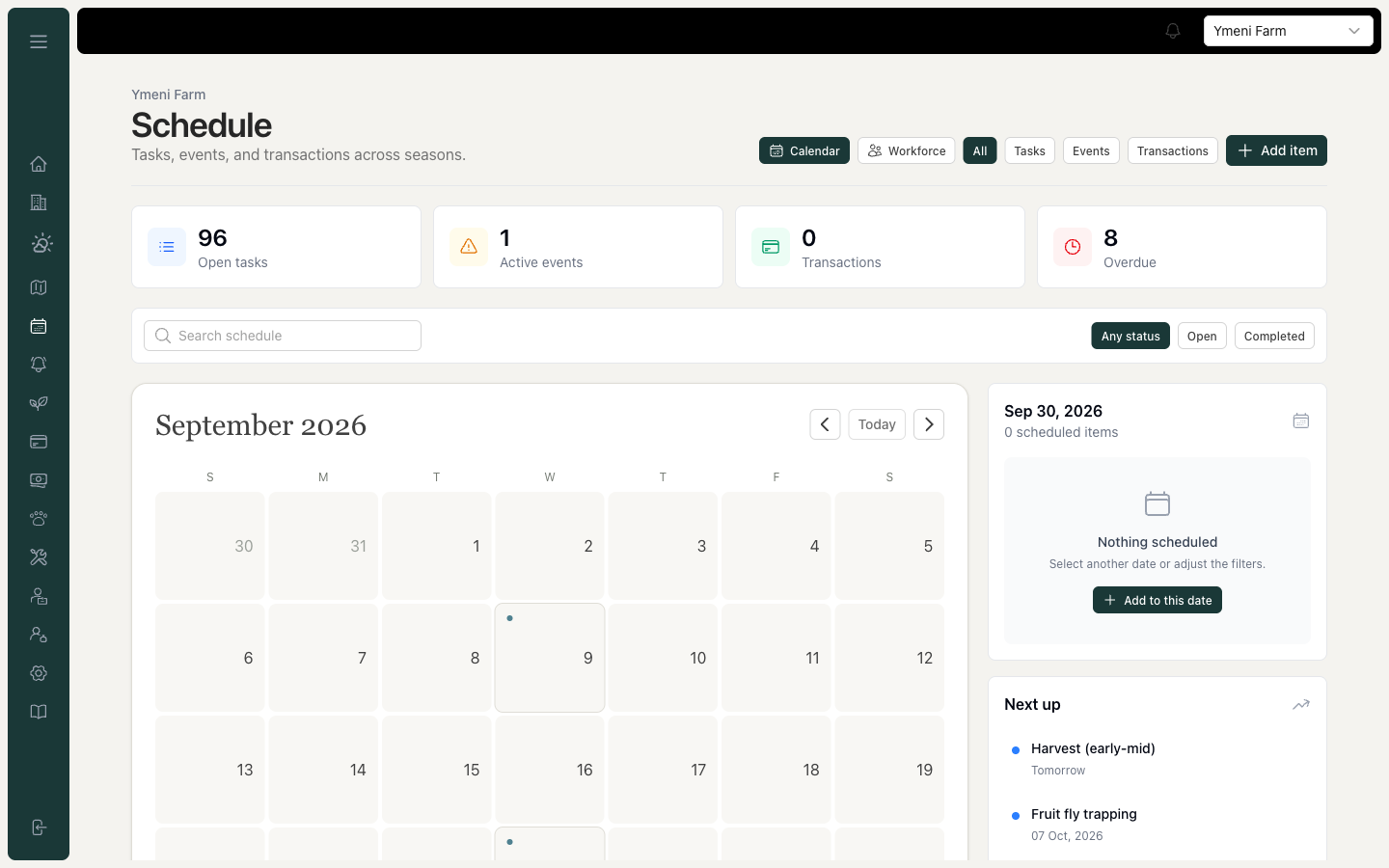
Open it
Click Schedule in the sidebar.
Views
Switch between:
- Month — high-level overview.
- Week — daily focus with time slots.
- Day — detailed agenda.
- List — chronological table.
What's on the calendar
| Item type | Source |
|---|---|
| Season tasks | Auto-generated from entity stage templates. |
| Ad-hoc tasks | Tasks you added manually to a season or worker. |
| Health reminders | Vaccinations and follow-ups due. |
| Season events | Scheduled or recurring events. |
| Season milestones | Start dates, expected harvest, end dates. |
Each type uses a distinct color — see the legend at the top of the page.
Filter the view
Use filters above the calendar to narrow by:
- Worker (assignee)
- Season
- Task status (open, complete, overdue)
- Item type
Click an item
Clicking any calendar entry opens its detail modal where you can:
- Mark a task complete.
- Reassign to another worker.
- Edit the date.
- Add notes.
Reschedule by drag
If supported in your view, drag a task to a new date. The change saves immediately and the assignee is notified.
Overdue work
Overdue tasks show in red. The dashboard's Tasks Due card surfaces them as well.
See also
- How to Manage Workers — assignments feed the schedule.
- Dashboard Cheat Sheet