
How to Track Sales
Sell harvest batches or animals, record payments, and follow up on unpaid balances.
How to Track Sales
The Sales page records crop and inventory sales leaving the farm. Each sale links to its source season and tracks payment status.
Open the page
Click Money in the sidebar, then the Sales tab.
Record a sale
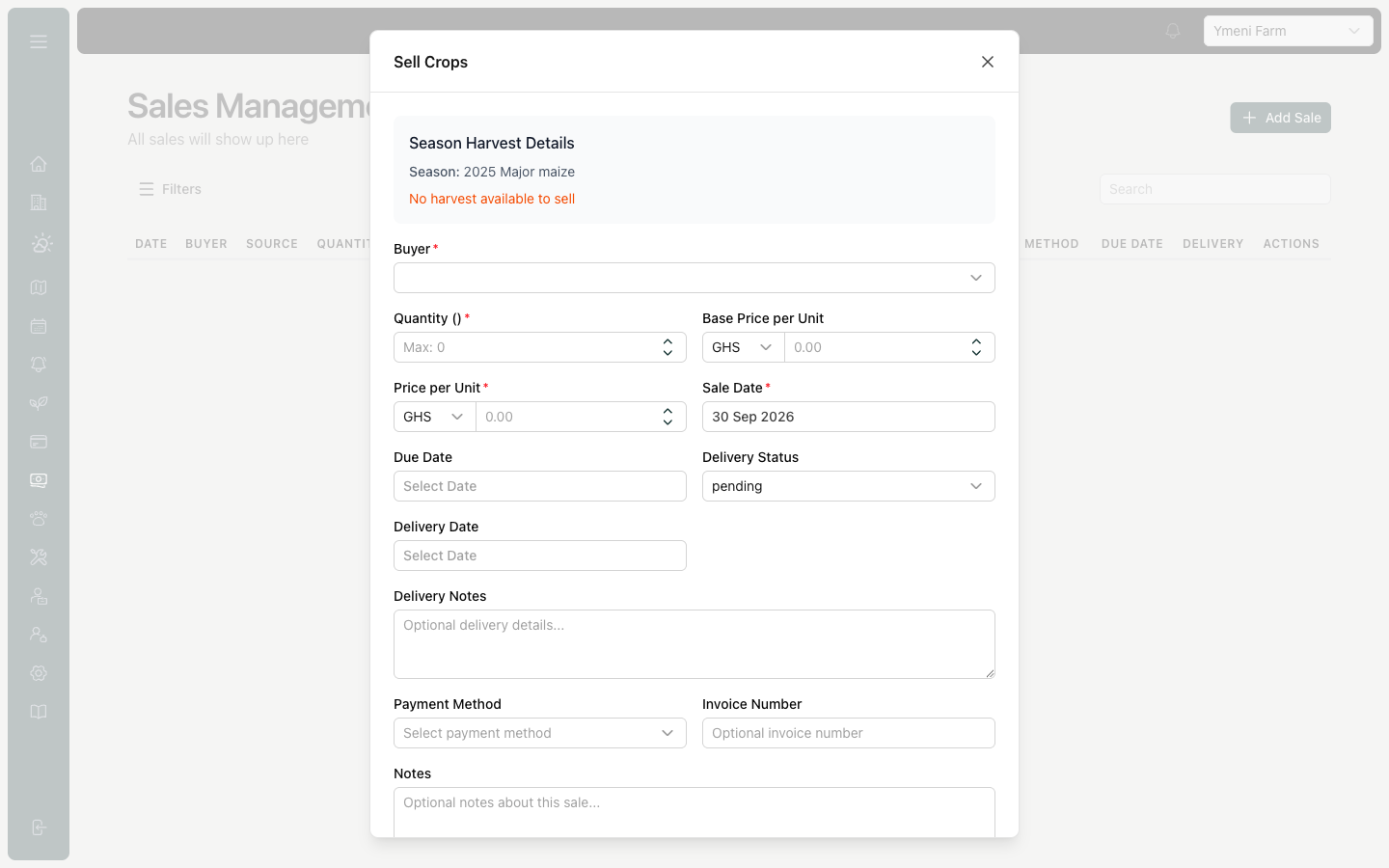
- Click Add Sale.
- Select the season.
- Fill in the Sell modal:
- Sale source — harvest batch or inventory stock.
- Item — pick from available harvest or stock.
- Buyer — name or contact.
- Quantity — cannot exceed available stock.
- Unit price — per unit.
- Currency.
- Sale date — required.
- Save.
The system calculates total = quantity × unit price. Income transactions are created when payments are recorded.
Record a payment
Sales can be paid in full at sale time or in installments.
- From the Sales table, click a sale row.
- Click Add Payment.
- Fill in:
- Amount paid.
- Payment date.
- Method — cash, bank, mobile money.
- Reference — receipt number or notes.
- Save.
The sale's outstanding balance updates automatically. Once paid in full, status flips to paid.
Filter sales
Use the filter bar to narrow by:
- Status — paid, partial, unpaid.
- Payment method.
- Season.
Reports
The Sales page totals revenue by:
- Season — see which cycles earned what.
- Item type — crop vs. livestock vs. other.
- Currency.
See also
- How to Manage Seasons — record harvest batches first, then sell them here.
- How to Record Transactions.