
How to Record Transactions
Log income, expenses, and transfers — single or multi-currency.
How to Record Transactions
Transactions track every money movement on the farm. They support multiple currencies and link to seasons, workers, suppliers, and inventory.
Open the page
Click Money in the sidebar (it opens on Transactions).
Add a transaction
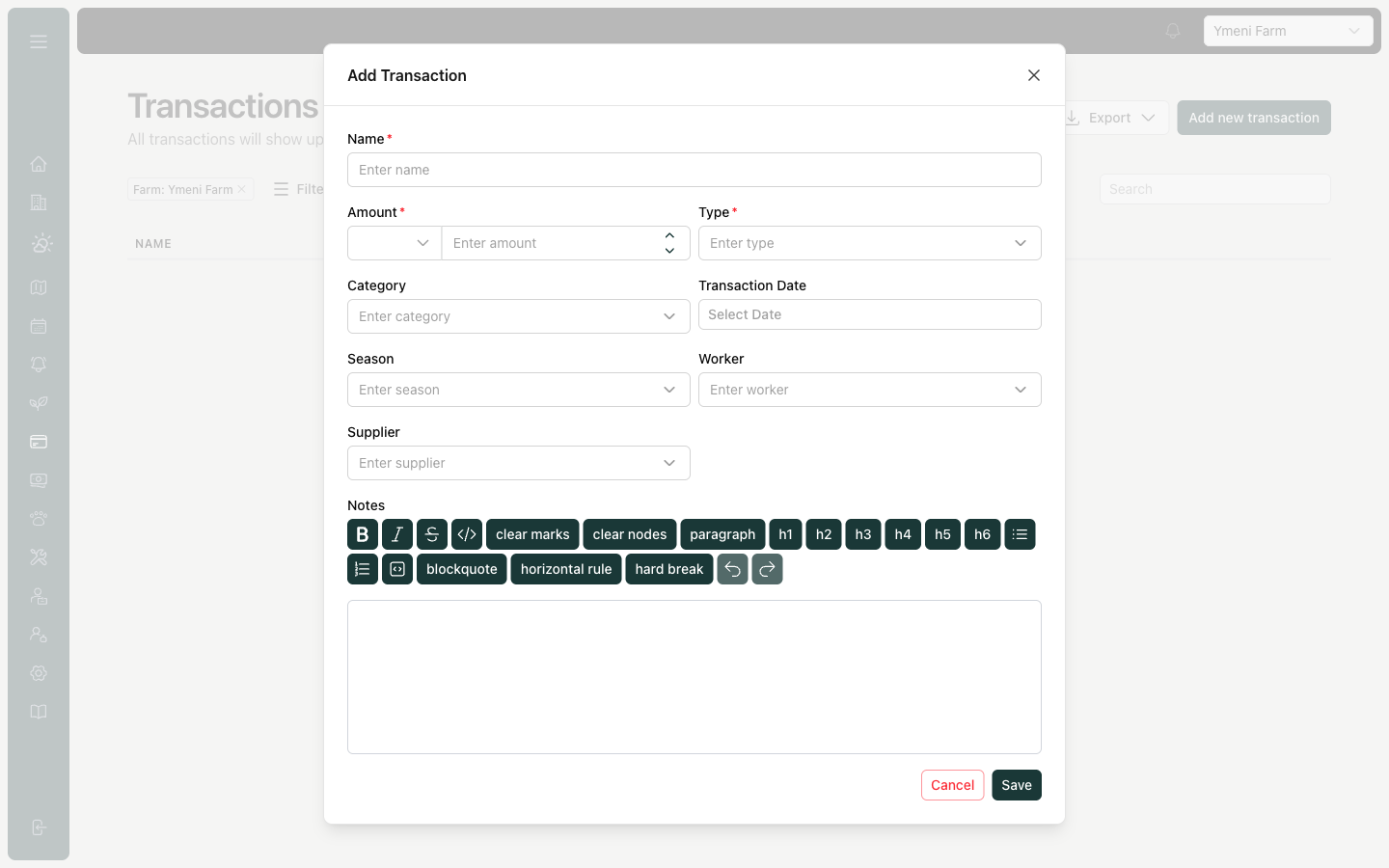
- Click Add Transaction (top right).
- Choose Type:
- Income — money in (sales, grants, refunds).
- Expense — money out (inputs, labor, equipment).
- Transfer — between accounts (no net change).
- Fill in:
- Amount — required.
- Currency — defaults to your farm's primary currency.
- Date — required.
- Category — e.g. seed, fertilizer, labor, equipment, sales.
- Payment method — cash, bank, mobile money.
- Description — free text.
- Link to related records (optional but recommended):
- Season — attaches the cost or revenue to a specific cycle.
- Worker — for wages and payments.
- Supplier — for purchases.
- Inventory item — for input purchases.
- Save.
Multi-currency
If your farm uses more than one currency:
- Each transaction stores its native currency and amount.
- Reports convert to your primary currency using the recorded exchange rate.
- Set rates in Settings → Currencies.
Filter transactions
Use the filter bar to narrow by:
- Type (income / expense / transfer)
- Date range
- Category
- Season
- Worker / supplier
- Currency
From a season detail page
You can also add transactions directly from a season's Transactions tab — the season link is pre-filled.
See also
- How to Track Sales
- How to Manage Workers — payments flow through transactions.