
How to Record a Harvest
Log harvest batches or livestock production with quantity, location, and labor.
How to Record a Harvest
When yield comes off the field — or production comes out of the livestock operation — log it as a harvest batch. Each batch rolls up into the season's total, feeds the dashboard's harvest card, and is what you later sell on the Sales page.
The form adapts to the entity type. Crop seasons say "Record Harvest." Livestock seasons say "Record Livestock Production."
Open the form
- Open the season detail page.
- Click Record Harvest (or Record Production for livestock).
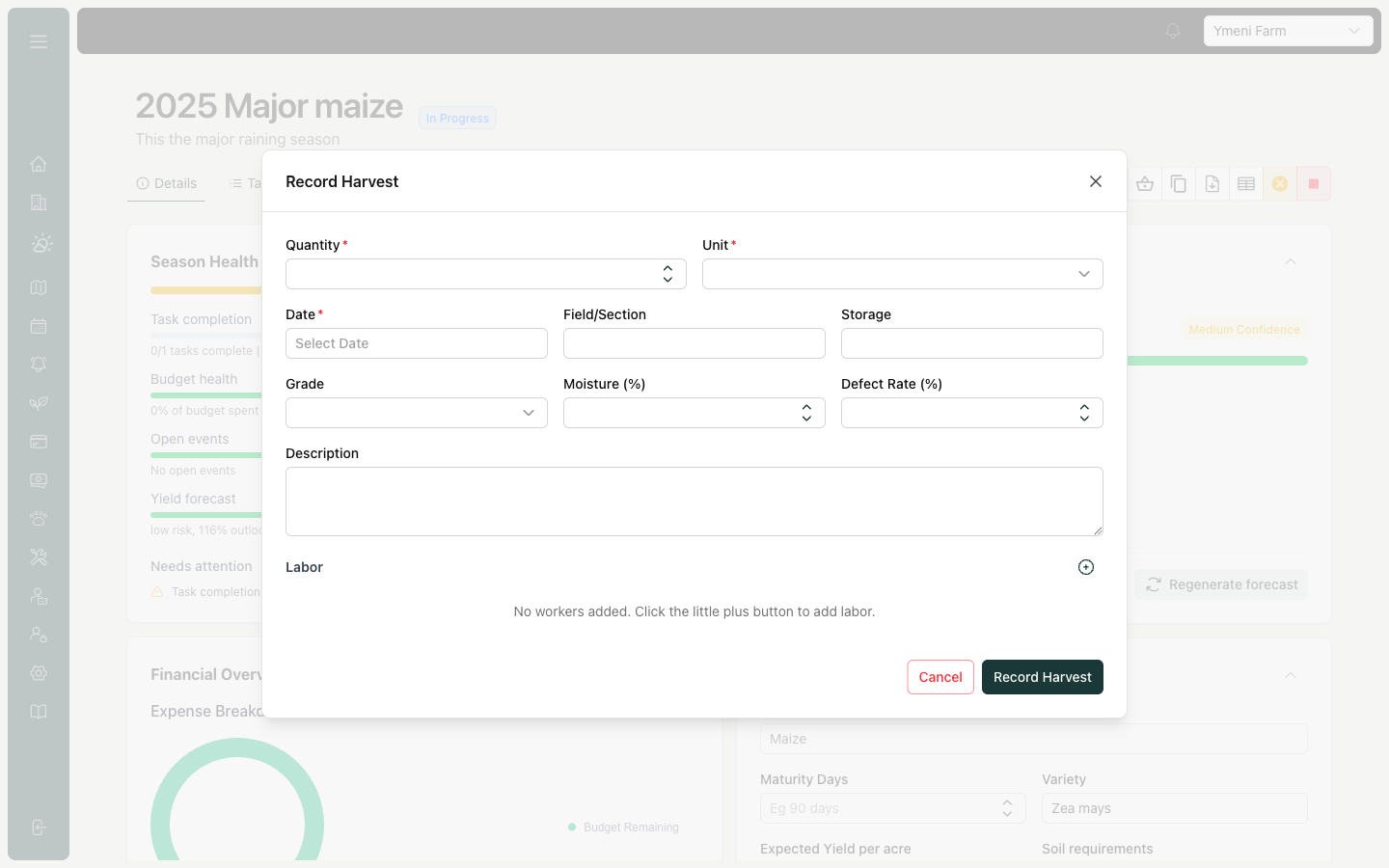
Fields
| Field | Required | What it is |
|---|---|---|
| Quantity | Yes | How much was harvested or produced in this batch. |
| Unit | Yes | Unit of measure. The options change by entity type — see below. |
| Date | Yes | When the harvest happened. |
| Field / Section | No | Which part of the plot or facility it came from. Useful when you have multiple sections per season. |
| Storage | No | Where it's stored after harvest — silo, cold room, warehouse. |
| Description | No | Free-text notes (quality, weather, anything notable). |
Unit options
For crop seasons:
kgtonnesbagscrates
For livestock seasons:
liters(milk)dozens(eggs)heads(count)kg live weightkg carcasskg wool
You can record multiple batches per season — even with different units — and the season totals them per unit.
Labor section
Each batch can capture the workers involved and their hours. Add up to 3 entries:
| Field | What it is |
|---|---|
| Worker | Pick from the workers list. Their hourly rate auto-fills. |
| Hours | Time spent on this batch. |
| Rate | Auto-populated from worker profile. Editable if it differs. |
Labor here feeds the season's labor cost total. The rate × hours is the cost attributed to the batch.
After saving
The batch appears in:
- The season's Harvest card with running totals per unit.
- The dashboard Harvest card (recent batches).
- The Sales page once you sell it.
- The Activity log.
Edit a batch
Click any row in the Harvest card to open it again — edit quantity, date, labor, or storage. Updates roll through to all totals.
Multiple batches per season
Common patterns:
- Continuous harvest (e.g. mango, vegetables) — one batch per pick day.
- Single harvest (e.g. maize) — one batch covering the whole event.
- Livestock daily — one batch per day for milk or eggs.
There's no limit. Filter the Harvest table by date when reviewing.
Storage losses
Grain, roots and beans keep losing weight after harvest to insects, mould, rodents and handling. Recording those losses shows where stock went and how well your storage works.
- In the Harvest card, expand a batch.
- Next to Storage, click Record loss.
- Enter how much was lost (in the batch's unit), the date you found it, the cause and any notes.
The loss comes out of the batch's stock available to sell. The batch shows what was sold, lost and is still available, and the card's summary shows Storage Losses as a quantity and a percentage of the harvest. Delete a loss to put the quantity back.
Pick how the batch is stored in the Storage field of the harvest form (for example hermetic bags or polypropylene sacks) so you can compare losses between storage methods. Storage losses also appear in the farm profile for lenders.
See also
- How to Track Sales — sell what you harvested.
- How to Manage Workers — rates feed the labor section.
- How to Manage a Season.